
Try a small source first.
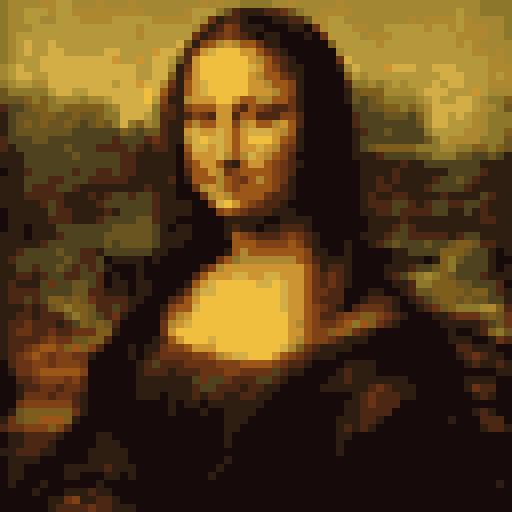
This public-domain Mona Lisa sample is a 64 × 64 grid with a 16-color adaptive palette. Source: Leonardo da Vinci / Musée du Louvre, via Wikimedia Commons.
Download sample .pxaPIXEL ART GENERATOR / FIGMA
Start with the free image converter. Download editable pixel-art source, then continue in Pixel Art Generator inside Figma.
This public-domain Mona Lisa sample is a 64 × 64 grid with a 16-color adaptive palette. Source: Leonardo da Vinci / Musée du Louvre, via Wikimedia Commons.
Download sample .pxaPNG: a flattened image for placement in a design. Use it when you want the finished appearance without editable source.
.pxa: editable source for Pixel Art Generator. The current plugin code supports importing this format; verify it in your installed edition before relying on a project handoff.
The browser converter is free. Plugin availability, licensing and premium features are shown in the linked host listing and plugin interface.
Help with source and preview differences →