Plus UI Design · Practical guides
Create a small pixel-art palette study
Practice shape and contrast with a deliberately small canvas and a limited set of colors.
Set a small constraint
Choose one object and a compact canvas. Start with a silhouette that reads without shading. Limiting the palette makes it easier to see whether the shape communicates the subject before adding decorative details.
Add a light and shadow role
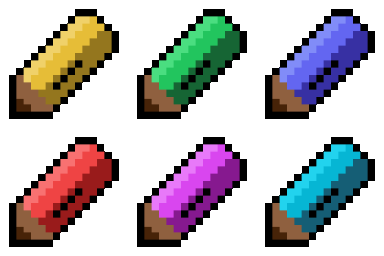
Choose colors for the base, highlight and shadow rather than picking many unrelated shades. Compare the artwork at its normal display size and at a larger nearest-neighbor preview. Each pixel should support the shape or material.
Explain the source
Save the editable JSON and record the canvas dimensions and palette choices. If you share it on PixelArt Cloud, describe the exercise so another creator can learn from the decisions instead of seeing only a finished preview.
Example to adapt
Palette role    Example
Background      Deep blue
Object base     Muted teal
Shadow          Dark teal
Highlight       Pale mint
Try the free image converter
Apply this workflow in the free image-to-pixel-art converter. Compare palettes and dithering, download a PNG or editable .pxa, and use the Figma or Adobe Express workflow when you want to continue in a design host.